


.png?width=141&height=141&name=Transact%20(1).png)






.svg)

.svg)
.svg)
.svg)


%201.svg)

















Monitoring tells you the network is having a bad day. A network diagnostics tool tells you which device is having it, why, and what to do about it.
That distinction matters more as networks grow. A single enterprise can run hundreds — sometimes thousands — of routers, switches, firewalls, and endpoints, all carrying traffic around the clock. When one link in that chain misbehaves, the cost shows up fast: dropped calls, stalled applications, frustrated employees, and IT teams working backward from a symptom to a cause.
A network diagnostics tool closes that gap. It's the difference between knowing something broke and knowing exactly what to fix.
What is a network diagnostics tool?
The short version: it turns "something's wrong" into "here's what, why, and how to fix it."
A network diagnostics tool is a troubleshooting solution built to evaluate, analyze, and resolve issues within a network's infrastructure. It ranges from complex tasks — tracing a fault through an operating system or a chain of network hops — to the simple stuff, like confirming a cable is actually plugged in.
It's a different job from network monitoring, and the distinction is worth being precise about. Network monitoring tools answer one question: is everything working as expected? A network diagnostics tool goes further — it answers why something isn't, and points IT teams toward the fix.
Getting this right is a fundamental part of network management. Without it, organizations are troubleshooting blind — reacting to outages instead of resolving them before customers notice.
Find out everything you need to know about enterprise network management
Key functions of network diagnostics tools
Four jobs every network diagnostics tool needs to do well.
Diagnostics exist to catch and resolve network problems before they escalate into the kind of disruption that shows up on a status page. A capable tool does more than flag that traffic is slow — it analyzes that traffic, isolates the bottleneck, and filters by IP address, packet type, and protocol to get straight to the root cause.
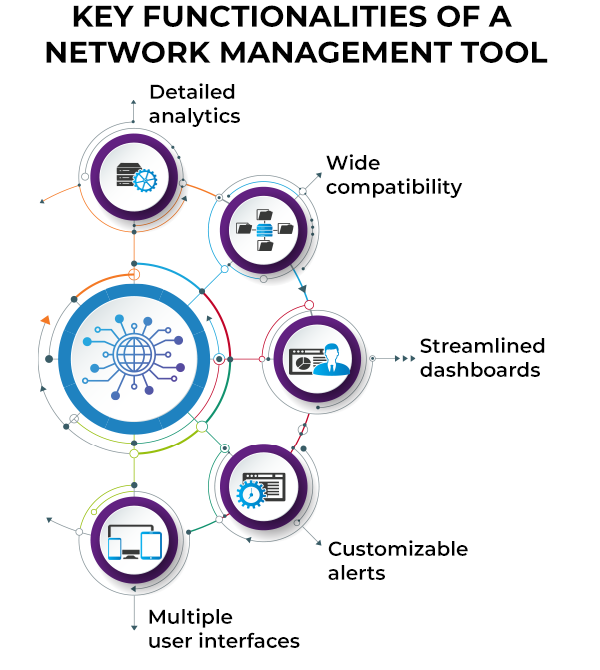
Image source: Spiceworks
Network connection monitoring
- Traffic analysis:
Tracks the flow of data across the network to show which devices and applications are consuming the most bandwidth. - Performance metrics:
Tracks key indicators including latency, jitter, packet loss, and throughput. - Issue identification:
Detects bottlenecks and unusual traffic patterns as they happen. - Root cause analysis:
Diagnoses the underlying cause of an issue — misconfiguration, hardware failure, or external interference — instead of just the symptom.
Configuration and management
- Device management:
Configures and manages network devices such as routers, switches, and firewalls from a single place. - Optimization recommendations:
Suggests improvements like adjusting Quality of Service (QoS) settings or selecting a less congested Wi-Fi channel.
Security monitoring
- Threat identification:
Flags potential security threats and unauthorized access attempts. - Vulnerability scanning:
Sweeps the network for weaknesses attackers could exploit.
Visual representation
- Topology mapping:
Creates a visual map of how devices are connected and how data moves between them. - Graphical reporting:
Shows performance metrics over time, so trends are visible at a glance.
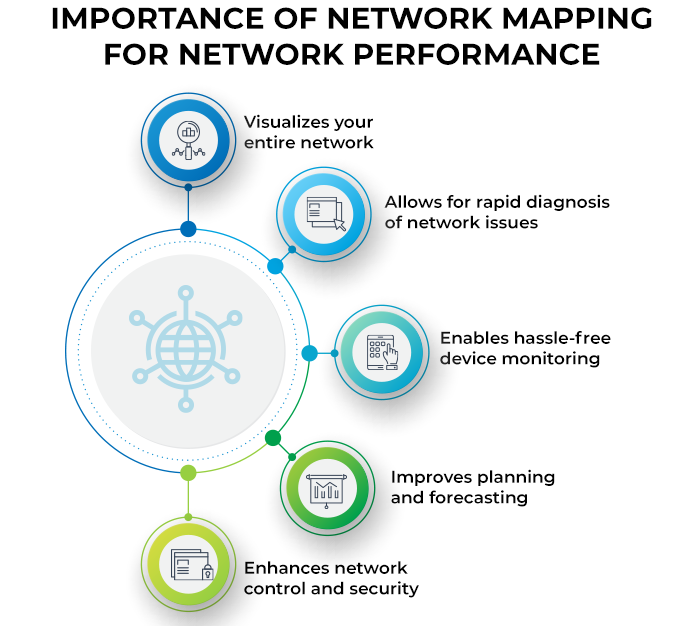
Image source: Spiceworks
Diagnostics testing
- Ping and traceroute:
Ping tests basic connectivity; traceroute maps the path data takes through the network, flagging where delays and failures occur. - Bandwidth testing:
Measures available bandwidth between two points to confirm there's enough capacity for the applications running on it.
What is Windows network diagnostics?
The built-in troubleshooter every Windows device already has.
Windows network diagnostics is a troubleshooting tool built into every Windows operating system. It gives users a simple, automated way to identify common connectivity issues — and, in many cases, fix them without IT involvement.
Key functions of Windows network diagnostics
The tool's primary job is detecting the connectivity issues, configuration errors, and hardware faults that keep a device from reaching the internet or other networked devices. Other functions include:
Automated troubleshooting
Windows network diagnostics scans for common connectivity and performance issues, then recommends or automatically applies a fix. It also logs what it found and what it did — useful context for IT support if the problem resurfaces.
Other issues it addresses
- Diagnosing why a device can't reach the internet.
- Identifying the cause of limited network connectivity.
- Detecting and repairing Domain Name System (DNS) server misconfigurations.
- Resolving conflicts where two devices have been assigned the same IP address.
How does a network diagnostics tool process historical data?
Today's outage is tomorrow's early warning — if the data sticks around long enough to learn from.
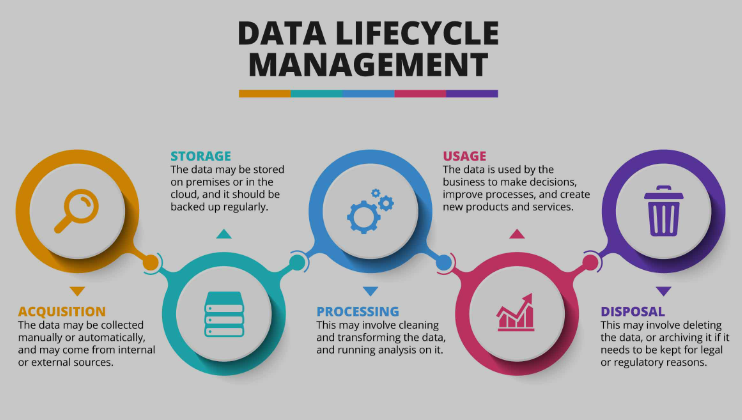
Network diagnostics tools process historical data by systematically collecting, storing, analyzing, and visualizing performance metrics and logs — traffic, bandwidth usage, latency, and error rates — recorded as they happen in real time.
Data storage
Raw data is stored in a centralized database, indexed and time-stamped so it can be retrieved and analyzed on demand. Most tools also apply retention and archiving policies automatically, so the volume of stored data stays manageable.
Data analysis
Historical data reveals trends and patterns over time — traffic peaks, periods of high latency, or recurring errors. Some tools apply statistical methods and machine learning to detect anomalies, predict future network behavior, and compare data points to trace recurring problems back to their origin.
Alerts and notifications
Diagnostics tools can set thresholds based on that historical baseline, then trigger an alert the moment performance drifts from the norm — by email, SMS, or another configured channel.
Find out more about network troubleshooting in our comprehensive guide
A guide to network troubleshooting with IR Collaborate
The most common performance issues detected by diagnostics tools
Five problems diagnostics tools catch before your help desk does.
Run a network diagnostic and a handful of issues turn up again and again. Response times, data volume, and traffic flow point to where the slowdown is happening — and to whether the problem sits with the application, the network, or somewhere in between.
High latency, packet loss, and bandwidth bottlenecks
Symptoms: Delayed data transmission, poor Voice over IP (VoIP) call quality, video that stutters or drops, and slow uploads and downloads.
Causes: Network congestion, physical distance between devices, faulty cabling or hardware, excessive device usage, or bandwidth that hasn't kept pace with demand.
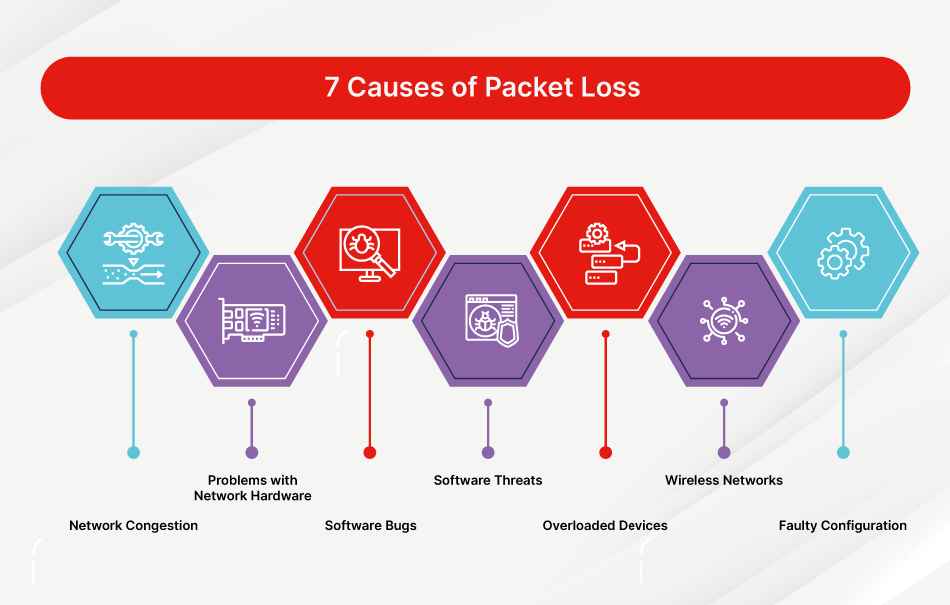
Image source: Fortinet
DNS issues
Symptoms: Websites that won't load, slow page access, and "DNS server not responding" errors.
Causes: Misconfigured DNS settings, ISP-side DNS problems, or a DNS server outage.
IP address conflicts
Symptoms: Devices that can't connect, repeated disconnections, and "IP address conflict" errors.
Causes: Two devices assigned the same IP address — typically a static assignment that overlaps with the DHCP range.
Network configuration problems
Symptoms: Inconsistent performance, resources that won't load, and intermittent connectivity.
Causes: Incorrect settings on routers or switches, or misconfigured subnet masks, gateways, or Virtual Local Area Networks (VLANs).
Security issues
Symptoms: Unauthorized access, unusual traffic patterns, and malware or spyware detections.
Causes: Weak passwords, outdated security protocols, ineffective encryption, or insufficient firewall protection.
How IR Collaborate helps resolve network problems
One platform, full visibility, across every vendor in the stack.
IR Collaborate, powered by the Prognosis platform, gives IT teams a single view across the networks, devices, and applications that keep the business running — instead of five different dashboards for five different vendors.
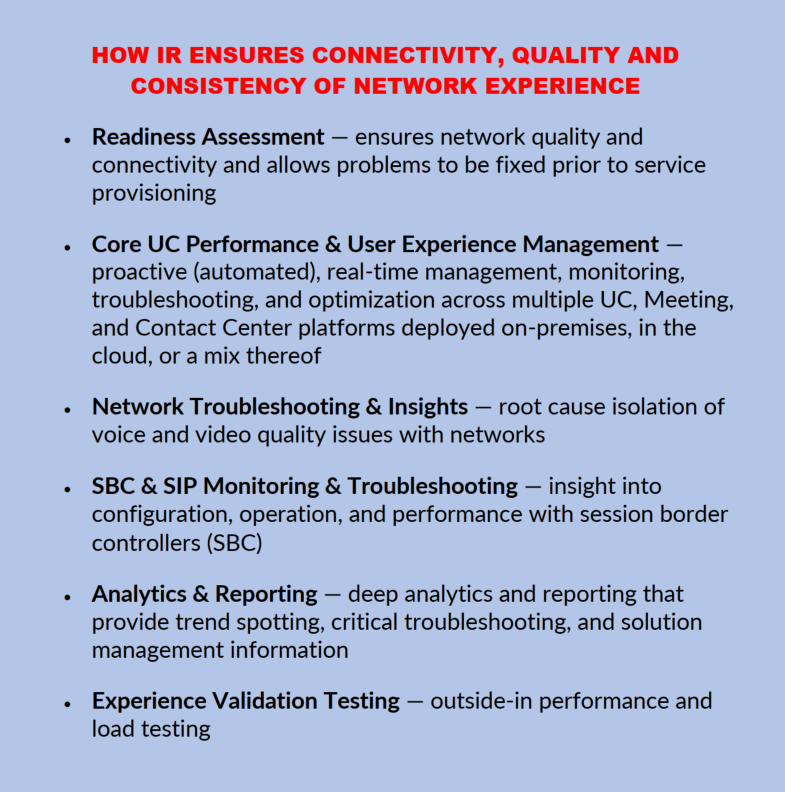
Here's what that looks like in practice:
- Detailed analytics:
Combines historical and real-time data to surface patterns and trends before they turn into outages. - Root cause analysis:
Helps IT teams trace an issue back to its source, so they're fixing the actual problem, not chasing symptoms. - UC&C monitoring:
Keeps voice and video communications clear and uninterrupted across Unified Communications and Collaboration (UC&C) systems. - Call quality monitoring:
Gives contact centers the detail they need to catch and resolve issues affecting call reliability. - Infrastructure visibility:
Extends beyond the network to servers and applications, for a holistic view of what's actually driving an issue. - End-to-end visibility:
Diagnoses complex issues that span multiple network components and IT systems, not just one layer of the stack. - Scalability:
Scales from a single contact center to a global, multi-vendor UC estate — deployed on-premises, in the cloud, or across a hybrid environment. - Cloud support:
Extends the same visibility to cloud services, so cloud-based applications and resources get the same level of scrutiny as on-prem systems.
Frequently asked questions
Network problems don't announce themselves — they show up as a dropped call, a stalled page load, or a support ticket nobody can quite explain. The organizations that stay ahead of them aren't the ones with the fewest issues. They're the ones with the visibility to find the cause in minutes, not hours.
See how IR Collaborate gives your team that visibility, across every vendor and every environment.