


.png?width=141&height=141&name=Transact%20(1).png)






.svg)

.svg)
.svg)
.svg)


%201.svg)

















Bluetooth headsets are now the default UC endpoint — and the one IT teams spend the most time troubleshooting. With the headphone jack disappearing from most laptops and phones, pairing a Bluetooth headset correctly has quietly become a core skill for every remote and hybrid worker.
Device and endpoint challenges leaving you lost? Find your way with Collab Compass.

Bluetooth is one of the most widely adopted wireless standards in the world, built for fast, convenient, hands-free communication. Every modern device — Android, iOS, laptop, tablet, or PC — supports it, so getting connected should be simple. In practice, it isn't always.
Use this guide to walk end users in your organization through pairing their Bluetooth headset correctly the first time.
What is Bluetooth?
One standard, one frequency band — but pairing still trips people up more than it should.
Bluetooth is a wireless technology that uses ultra-high radio frequency (UHF) radio waves, transmitting at around 2.4 gigahertz (2.4 billion waves per second).
Bluetooth typically has a range of around 30 feet (10 meters) and is most commonly used to connect headphones and transfer files. Every Bluetooth device has to be paired before it can be used.
Getting a stable connection isn't always as straightforward as it should be. This guide walks through pairing Bluetooth headphones with a mobile device or computer so calls stay clear and problem-free.
Connecting Bluetooth headphones
Three vendors dominate the corporate headset market — and each pairs a little differently.
Of the vast selection of devices on the market today, three of the biggest names in wireless communication are:
-
Jabra, a Danish company founded in the US that specializes in sound and video conferencing equipment.
-
Poly, part of HP, creating premium audio and video products for hybrid work.
-
Bose, which has supplied high-end sound and communication solutions for more than 60 years.
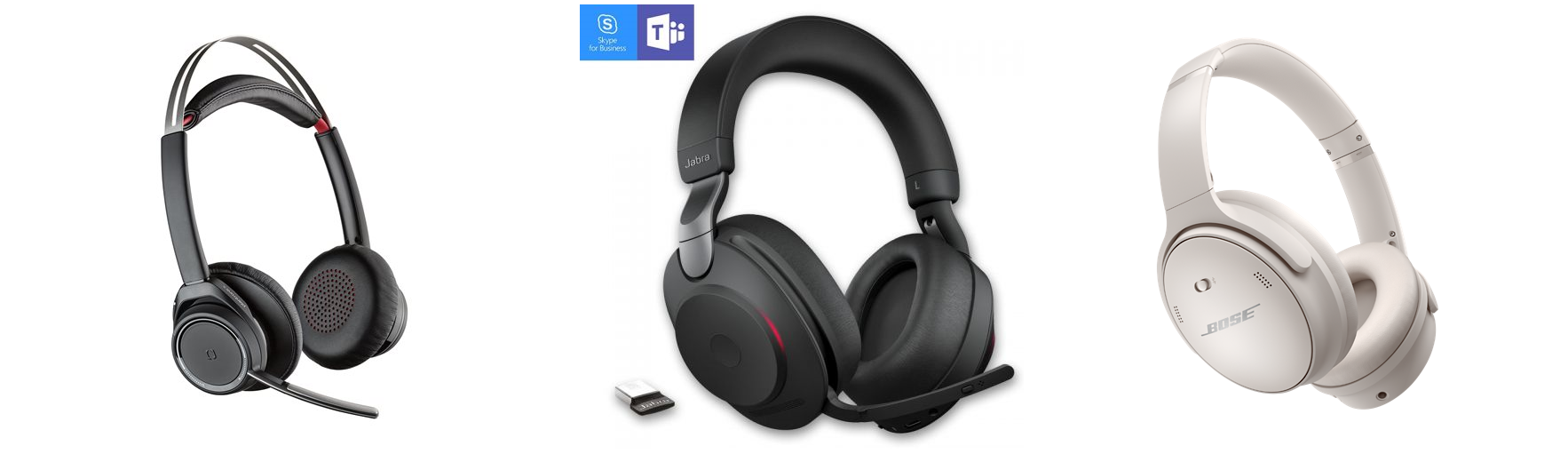
Poly · Jabra · Bose
Whatever the brand, connectivity issues are common when pairing Bluetooth headphones. Typical causes include:
-
The operating system not recognizing the device
-
Incompatibilities with other paired devices
-
Audio issues with the computer or mobile device
-
Insufficient Bluetooth range
-
The headphones or the device not actually being in pairing mode
The sections below cover how to pair each of these three brands with a mobile device or computer.
How to pair Bluetooth headphones: General tips
When in doubt, put the accessory into pairing mode first — most failures start there.
Bluetooth headphones and other accessories aren't always ready to connect automatically. Most dedicated devices — speakers, headphones, and other sound equipment — need to be put into pairing mode. The fastest way to confirm how is to check the device's manual.
:max_bytes(150000):strip_icc()/BluetoothPairingAndroid-6349b2b6c2eb4635acb84b5ea943778e.jpg)
Image source: Lifewire
Connecting Jabra Bluetooth headphones with your device
Jabra pairing is a two-step handshake: make the accessory discoverable, then confirm it on the device.
Bluetooth headphones can connect to an iPhone, iPad, laptop, Mac, or Windows PC to make audio and video calls, stream music, and more. Jabra headphones are among the most widely used brands in the corporate market for their ease of use and connectivity.
-
Go to Settings > Privacy & Security and select Bluetooth from the menu.
-
Place the accessory in discoverable mode and wait for it to appear on the device. If it doesn't appear, check the instructions that came with the accessory.
-
To pair, tap the accessory name when it appears on screen. A PIN or passcode may be required — check the accessory's documentation.
-
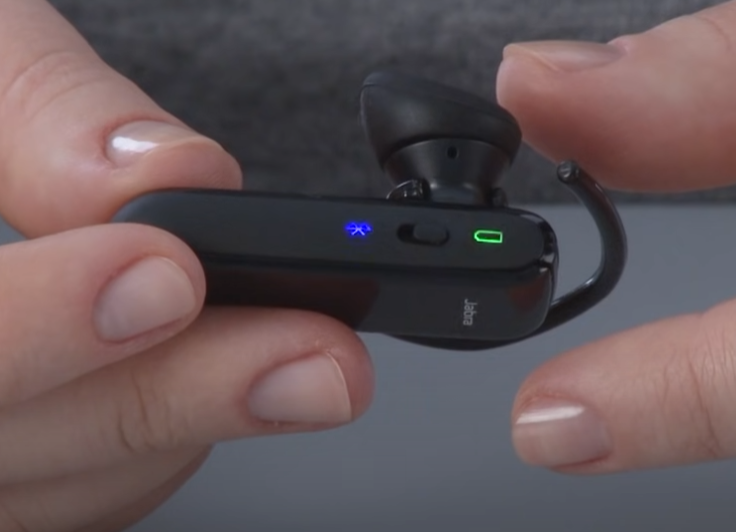
Turn off the headset.
-
To enter pairing mode, press and hold the Answer/end button on the headset until the light turns blue.
-
Select Bluetooth from the device's menu and choose the Jabra headset from the list of available devices.
Note: If pairing doesn't work, repeat the steps, or try pairing with a different Bluetooth device to isolate the issue.
To pair multiple accessories, repeat these steps. Where more than one device is paired with an iPhone or iPad, the audio source can be chosen manually.
Select and pair Jabra earbuds on your phone or laptop
To pair with a smartphone, tablet, or other mobile device:
-
Enable Bluetooth on the mobile device.
-
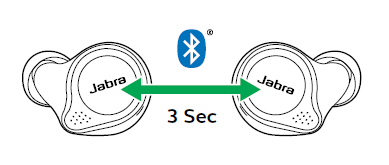
Turn on the earphones by removing them from the charging case, or simultaneously press and hold (1 second) the Left and Right buttons. The LEDs on both earphones flash green.
-
To enter pairing mode, simultaneously press and hold (3 seconds) the Left and Right buttons until the LED on the right earbud flashes blue. They're now ready to pair.
-
Go to the Bluetooth menu on the mobile device and select the Jabra device from the list. Alternatively, wear the earphones to hear voice-guided instructions. Enter "0000" (four zeros) if a PIN code is requested.
In daily use, Jabra earbuds should automatically reconnect to the last paired device, if it's turned on and in range.
Connecting Bose Bluetooth headphones with your device
Bose's pairing method varies by model more than any other brand here — check which one applies before troubleshooting.
Bose headphones sit at the high end of the wireless headphones market, with the promise of a strong user experience. Pairing and connecting can take a little more work than with other brands.

-
To make sure the device can recognize the headphones, go to the device's settings — usually a gear icon — and confirm Bluetooth is toggled on.
-
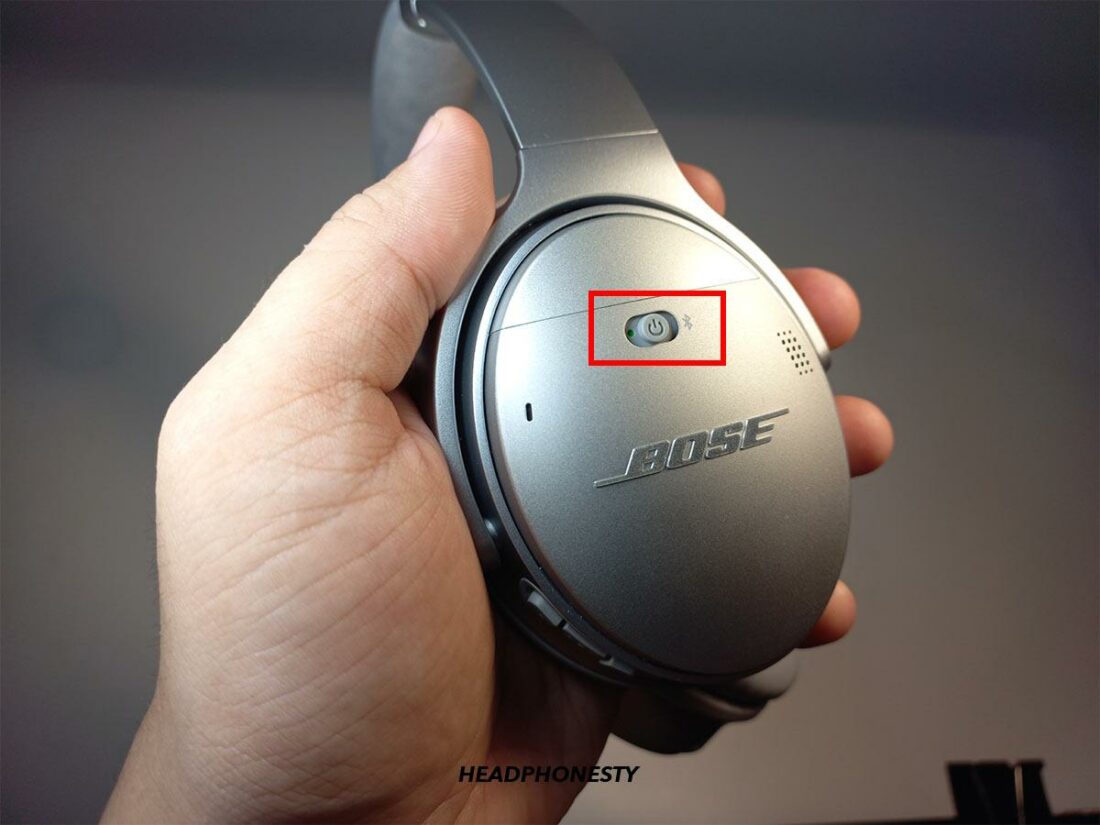
Locate and press the pairing button.
-
On over-ear models with a switch on the ear cuff, slide it to the "on" position until a blue light begins to pulse.
-
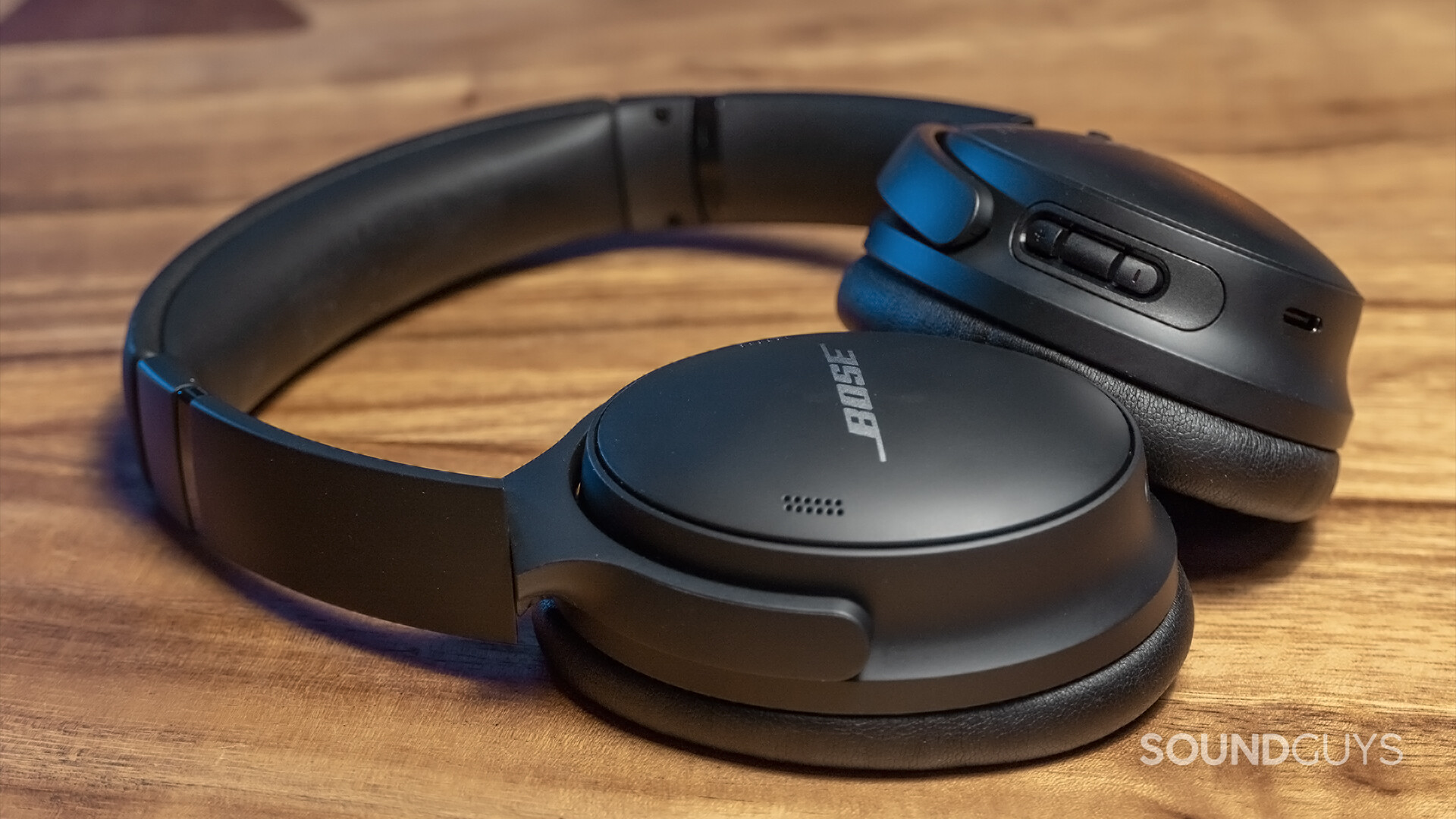
On earbud models, the pairing button is on the back of the case. Press and hold it for around 2 seconds, then release when the light begins slow-blinking blue.
Note: On both in-ear and over-ear models, the blue light confirms Bluetooth is active and the headphones are ready to pair. If the buds are already in the ears, a voice prompt will also confirm "Ready to pair."
The exact pairing method varies by device, so it's worth confirming against the model in hand.
Connecting Bose headphones to a Mac
Pairing Bose headphones to a Mac is fairly straightforward:
-
Select the System Preferences icon in the Mac dock.
-
Select Bluetooth, and confirm it's switched on so the headphones can recognize the computer as a connection point.
-
Keep the Bluetooth settings open while pairing the headphones — press and hold the connection button until the blue light appears.
-
The Bose device name will appear, and the Mac will recognize and connect the headphones.
:max_bytes(150000):strip_icc():format(webp)/004_how-to-connect-bose-headphones-to-a-mac-5179323-adcea5ac472340efa62bf879711ce2d1.jpg)
Connecting Poly Bluetooth headsets with your device
Poly's headsets split into three control styles — the pairing sequence depends on which one your team has.
Poly Bluetooth headphones fall into one of three categories: a single button for call control and power, a sliding on/off switch, or a dedicated on/off button.

-
Headsets with a single button for call control and power
Confirm the power button is off. Press and hold the call control/power button until the LED flashes red and blue. Search for new devices on Bluetooth — the headset appears as "PLT" followed by the model name.

-
Headsets with an on/off switch
Confirm the power button is on. Press and hold the call control button until the LED flashes red and blue. Activate Bluetooth on the phone and search for new devices — the headset appears as "PLT" followed by the model name.

-
Headsets with a sliding on/off and Bluetooth toggle
Confirm the power button is off. Slide and hold the power toggle toward the Bluetooth icon until "pairing" is announced and/or the LED flashes red and blue. Release the toggle, activate Bluetooth on the phone, and search for new devices — the headset again appears as "PLT" followed by the model name.
Fixing common Bluetooth headset connection problems
Most pairing failures trace back to one of three causes: a conflicting connection, low battery, or a version mismatch.
Bluetooth pairing is generally problem-free, and in many cases no menu access is even needed — connection happens automatically. But troubleshooting is sometimes necessary. Here are the most common problems and how to fix them.
-
Isolate the source of the problem
When Bluetooth turns on but nothing happens, or the headphones won't enter pairing mode, the fault could sit with the headphones, the mobile device, or the app. Try pairing with another device — glitches are often specific to a particular combination of headphones and device, not the headphones alone.
-
Headphones won't pair
Common causes include:
-
The headphones may already be connected to another device. Some headphones support multiple simultaneous connections; others don't. Turn off Bluetooth on the originally paired device.
-
Low battery can prevent pairing. Charge the headphones fully before trying again.
:max_bytes(150000):strip_icc():format(webp)/Battery_indicators_full_partial-569ffe5b3df78cafda9f8411.jpg)
-
Incompatibility can also block pairing — some newer Bluetooth headphones won't connect to older phones, tablets, or laptops. Check the supported Bluetooth version on both devices.
-
Audio issues
Low-quality sound, or audio cutting in and out, are the most common complaints.
-
Audio can distort when a mobile device is connected to two Bluetooth accessories at once — for example, a smartwatch alongside an inactive headset.
-
Updating the headset's firmware often resolves audio problems.
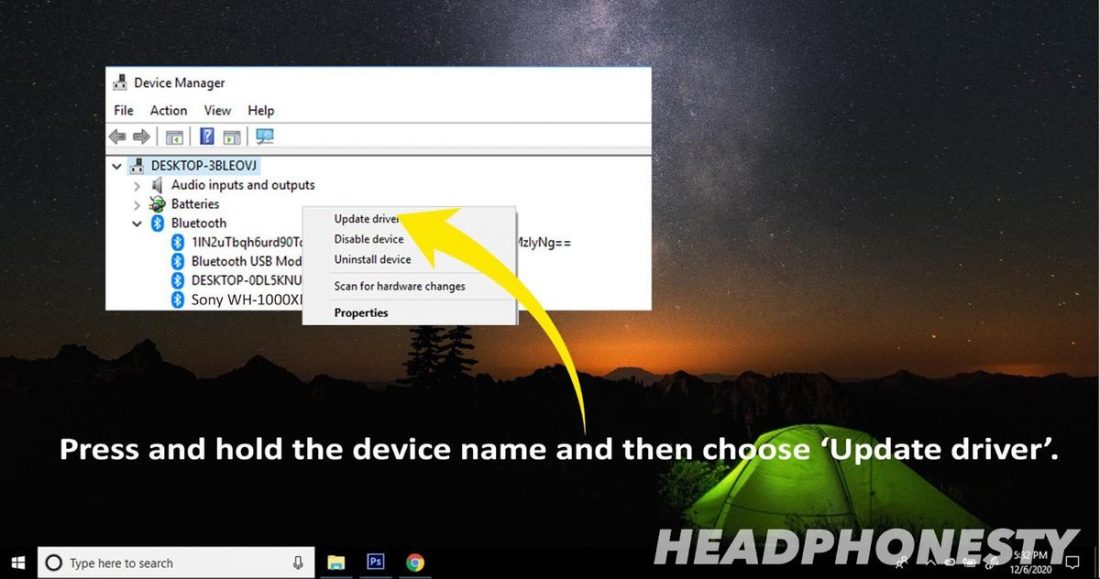
-
The audio codec can also be worth adjusting. In the device's Bluetooth settings, tap the "i" or the Settings cog — some headphones offer HD Audio or similar codecs that may improve quality.
If audio problems show up across the wider UC environment rather than on one headset, it's worth ruling out with dedicated call-quality testing before assuming the headset is at fault.
Staying connected with monitoring, troubleshooting and performance management
One misbehaving headset is a support ticket. Hundreds of them across a hybrid workforce is an observability problem.
Hybrid working is now embedded in how organizations operate, and with it comes dozens — often hundreds — of endpoint users, many on their own devices. Getting one Bluetooth headset paired is straightforward with this guide. Keeping hundreds of them working reliably, across a hybrid workforce, is a different problem entirely.
This is where a third-party monitoring solution earns its place: giving IT teams visibility into which applications and devices are in use, by whom, and which ones are causing the glitches.
With IR Collaborate, IT teams can track apps and devices across the network, their locations, and data usage. Full visibility and endpoint accountability can help teams catch problems before they reach the end user.
Without that visibility, a single device issue rarely stays contained — it has a knock-on effect across teams and groups throughout the organization.
Read our comprehensive guide to Mobile Device Management or watch our webinar, How Technology is Shaping the Digital Workplace

See how IR Collaborate gives your team that same visibility across every endpoint — get a demo.